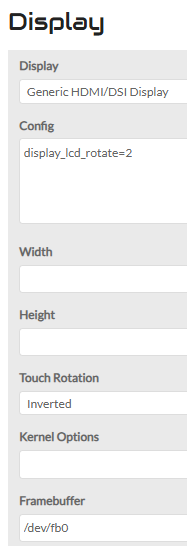
My display works perfectly under Vangelis and is set as Generic HDMI/DSI display.
How can I get a 180° rotation either for screen either for touch.
I tried on Webconf setting rotation to inverted but it changes only the touch
My display works perfectly under Vangelis and is set as Generic HDMI/DSI display.
How can I get a 180° rotation either for screen either for touch.
I tried on Webconf setting rotation to inverted but it changes only the touch
I had the same problem with a Waveshare DSI… When editing from WebConf, the initial text rotated but not the image… In the end I physically rotated the display…
is there a wiki to learn the commands to rotate screen?
Try adding rotate=180 to the config parameters (you’ll have to check “advanced view”)
I personally use those settings: dtoverlay=piscreen2r,speed=8000000,rotate=270
But … it probably depends of the overlay you’re using (an overlay = the driver for a physical layer added to the Pi).
All overlays and options are described in /boot/overlays/README (and not all of the screen overlays are supporting rotate option apparently)
Other option: using Xorg to rotate the display. I don’t know how to do this but I’m pretty sure it’s possible.
it does not work
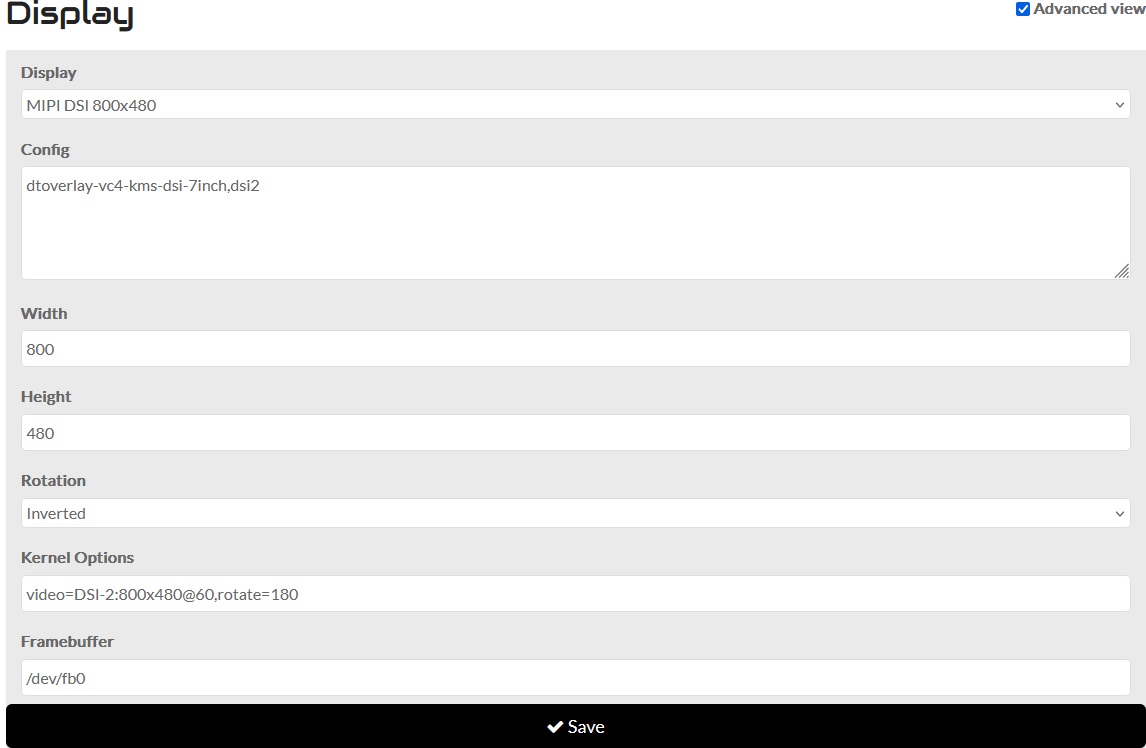
These are my settings. but as I told you the rotation is visible ONLY in the terminal writings (start and stop). I had to physically rotate the DSI display.
I come back once more with my question: **how to get 180° rotation for my LCD touch screen?
**
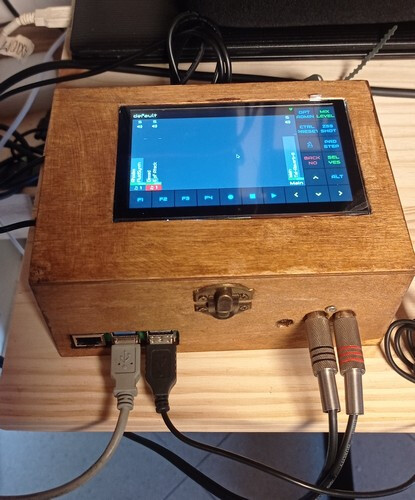
I built a DIY Zynthian and I would like to rotate the display of 180 degrees for a better usabilty of my gear.
I would like to have connectors in the opposite side but unfortunately I cannot rotate physically the touch screen because screen connection strip is too short.
My ticket (#1454) was closed with this answer:
… Please, search/ask the forum as this is a quite common question. Also, please, specify the context. I mean:
Hardware details
Software details
etc.
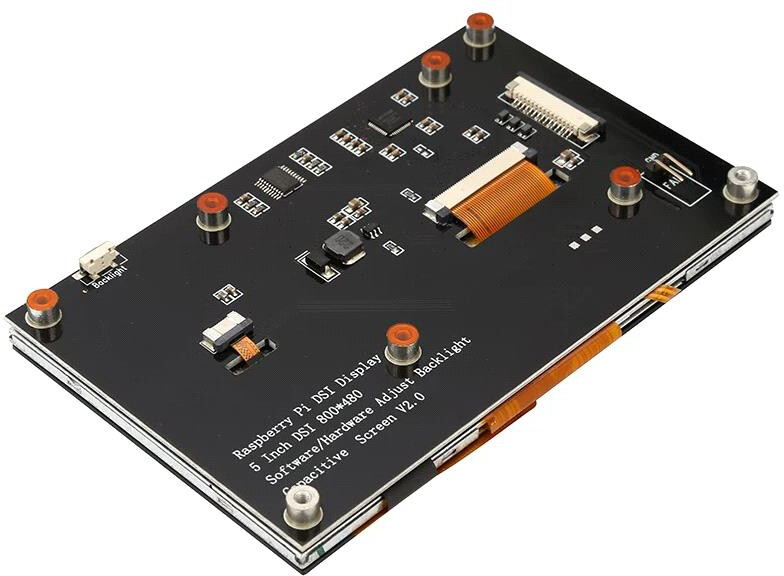
So, my touch screen is a DSI capacitive LCD TFT 5” 800x480 set as is set Generic HDMI/DSI Display
in my Zynthian version:
zyncoder: vangelis (a03a079)
zynthian-ui: vangelis (df81016)
zynthian-sys: vangelis (4e453b7)
zynthian-data: vangelis (6ac209e)
zynthian-webconf: vangelis (f070940)
could you help me to get 180° rotation?
not 
I also tried to other way with Generic HDMI/DSI Display
rotation: inverted
–> no success
display_lcd_rotate=2
rotation: inverted
–> no success
apparently it should be really simple problem
but I can’t solve it 
It’s lame of course, but can’t you get a longer cable so you can turn the screen upside down?
It is not the point. However a log flat seems does not exist.
I notice that there are more than one inversion-rotation specified in the display settings, could it simply be a matter of them cancelling each other out?
I wonder if you could make the screen go sideways, just to give some idea what is going on.
Below is an ‘AI Overview’:
The lcd_rotate= parameter was used in older versions of the Raspberry Pi’s config.txt file to rotate the display and touch input, but it is largely superseded by the more versatile display_rotate parameter or newer display management systems. To rotate the display, edit /boot/config.txt (or /boot/firmware/config.txt in newer versions), add display_rotate=0 (no rotation), display_rotate=1 (90° clockwise), display_rotate=2 (180°), or display_rotate=3 (270° clockwise), and then reboot the Raspberry Pi. [1, 2, 3, 4]
How to Rotate the Screen
Open the Terminal: Open your terminal on the Raspberry Pi. [4]
Edit config.txt: Type the command sudo nano /boot/config.txt (or /boot/firmware/config.txt for Bookworm) and press Enter. [1, 2, 3, 4]
Add or Change the Parameter: At the bottom of the file, add or modify the display_rotate parameter with your desired rotation value: [4]
Save and Exit: Press Ctrl+X, then Y to confirm saving, and then Enter to exit the editor. [2, 4, 5, 6, 7]
Reboot: Reboot your Raspberry Pi for the changes to take effect. [1, 2]
Why lcd_rotate= is Older [3, 8]
Legacy Stack: The lcd_rotate= parameter works with the legacy firmware/graphics stack used during early boot.
Modern Systems: Newer Raspberry Pi operating systems (like Bookworm) switch to the DRM/KMS graphics stack later in the boot process, making the older lcd_rotate= parameter less effective or ignored in favor of commands like display_rotate.
Considerations
display_rotate vs lcd_rotate: While lcd_rotate was for LCD displays, display_rotate is a more general command that rotates the video output and also affects touch inputs. [2]
Specific Drivers: If you are using a third-party display, there might be specific dtoverlay parameters or scripts (like the LCD-show script for some 3.5-inch displays) that provide different rotation methods. [9]
AI responses may include mistakes.
[1] https://www.unixtutorial.org/rotating-image-on-raspberry-touch-screen/
[2] https://www.youtube.com/watch?v=J4WsMu7t3Yo
[3] https://github.com/raspberrypi/bookworm-feedback/issues/154
[4] https://www.instructables.com/Rotate-Raspberry-Pi-Display-and-Touchscreen/
[5] https://www.lcdwiki.com/How_to_modify_the_display_orientation-CTP(En)
[6] https://core-electronics.com.au/videos/how-to-rotate-raspberry-pi-video-display-screen
[7] https://www.obico.io/blog/kilpper-screen/
[8] https://www.reddit.com/r/raspberry_pi/comments/u0nakb/7_screen_rotation_wo_gui_tried_all_the_tricks/
[9] https://raspberrypi.stackexchange.com/questions/55934/3-5-kuman-touchscreen-rotation
Not all images can be exported from Search.
If you can ssh into the zynthian, try this:
DISPLAY=:0 xrandr
This will show the name of the display. For my dev machine it looks like this:
Screen 0: minimum 320 x 200, current 800 x 480, maximum 4096 x 4096
DSI-1 connected primary 800x480+0+0 (normal left inverted right x axis y axis) 0mm x 0mm
   800x480       60.03*+
Then change the orientation with:
DISPLAY=:0 xrandr --output DSI-1 --rotate inverted
or
DISPLAY=:0 xrandr --output DSI-1 --rotate normal
Replace “DSI-1” with the name of your display.
thank you @riban
first good step! mine is
Screen 0: minimum 320 x 200, current 800 x 480, maximum 4096 x 4096
DSI-2 connected primary 800x480+0+0 (normal left inverted right x axis y axis) 0
so
with DISPLAY=:0 xrandr --output DSI-2 --rotate inverted screen rotation of 180’  but touch as original status
  : it would be enough to invert the touch…
with DISPLAY=:0 xrandr --output DSI-2 --rotate normal
no changes
Touch can be rotated with webconf rotation option in HARDWARE→Display.
@piattica I think you have plugged your screen to DSI-2 connector. The advice in the thread has been for DSI-1. You could either swap the physical connector to DSI-1 or change the configuration in webconf to DSI-2. There may be preset configurations available in the drop-down ”Display” field that suit you if using DSI-1.
[Edit] I have added a table to the wiki page describing each field in webconf Display page. There could be room for improvement in webconf, e.g. we could do similar to audio, where changing a parameter will populate the relevant fields, but this will require a good understanding of how each device is configured which is beyond my capacity at this time.
finally solved! 
I confirm to @riban that previously my LCD was connected to DSI-2 connector
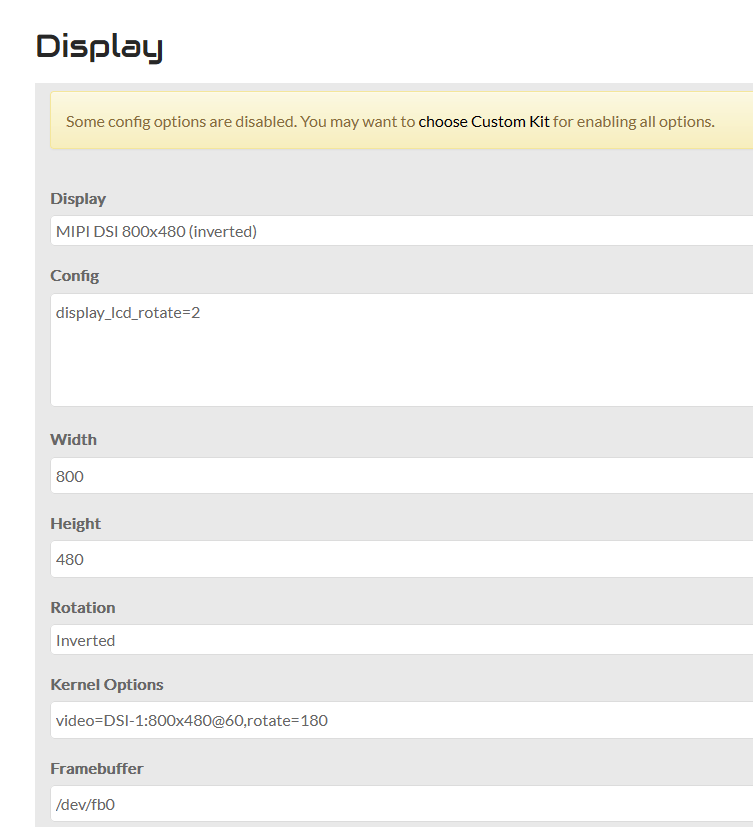
once changed phisically the connector to DSI1, all settings became effective:
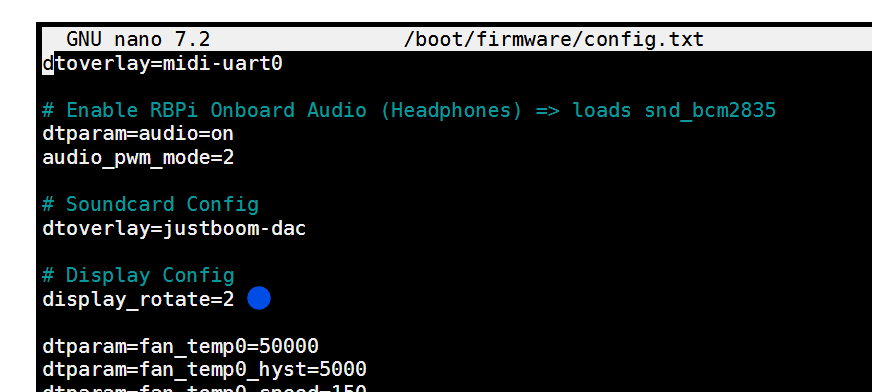
I also noticed that now in /boot/firmware/config.txt Webcon wrote:
display_lcd_rotate=2