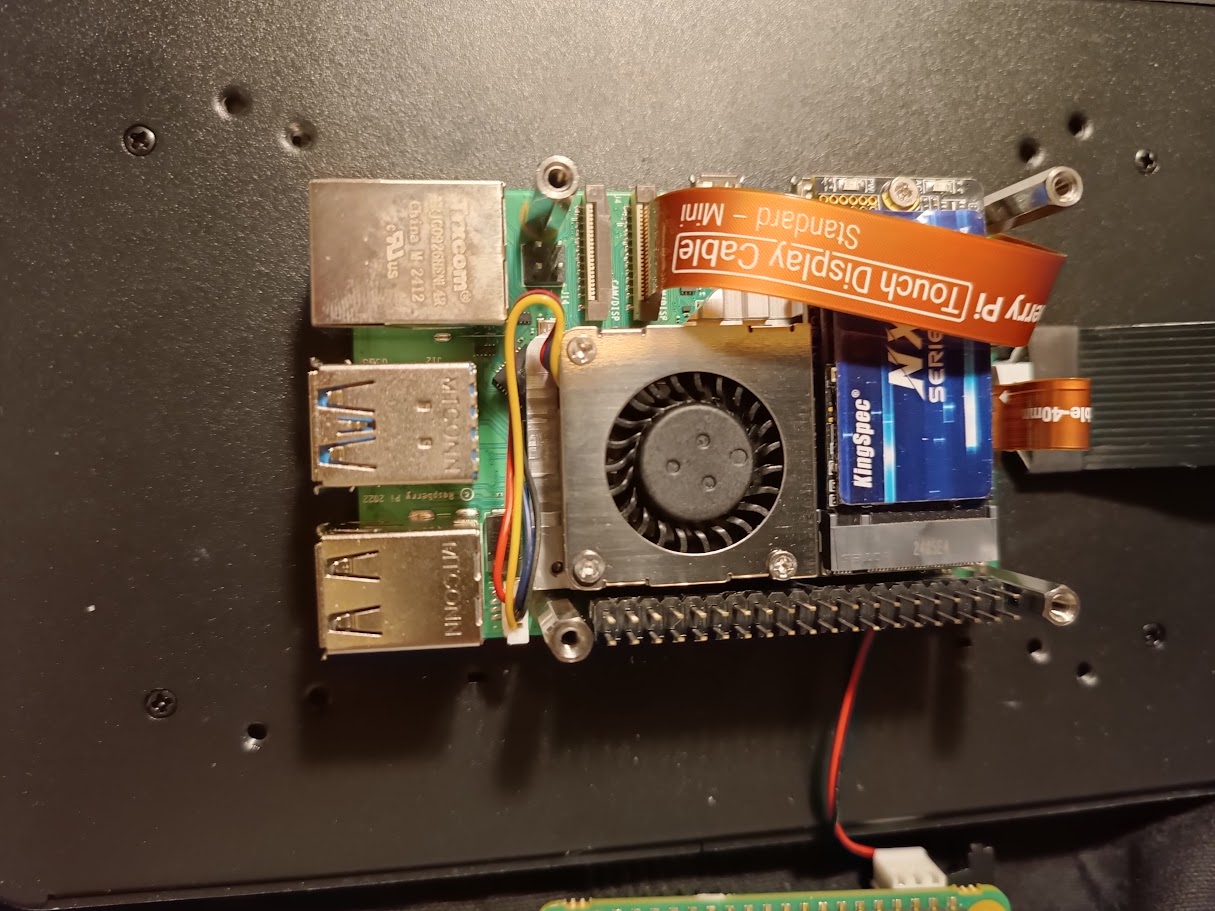
today i got delivery of my new rPI/Zynthian screen & case (rpi display 2 & kksb display stand/hat version (with room for my DAC).
After searching around here on similar questions, i did manage to make it boot in such a way that the terminal output scrolled the right way (down→ up), and also so that the vangelis UI is “sort of” in the proper direction now (after many trials).
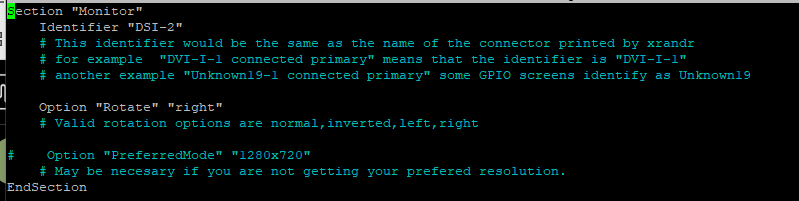
i followed a gentlemans advice here and added this to “sudo nano /usr/share/X11/xorg.conf.d/90-monitor.conf”
After which i could see the console boot log properly oriented and also the Vangelis UI “sort of” proper oriented (facing the right upward direction).
However, i have 2 major issues now:
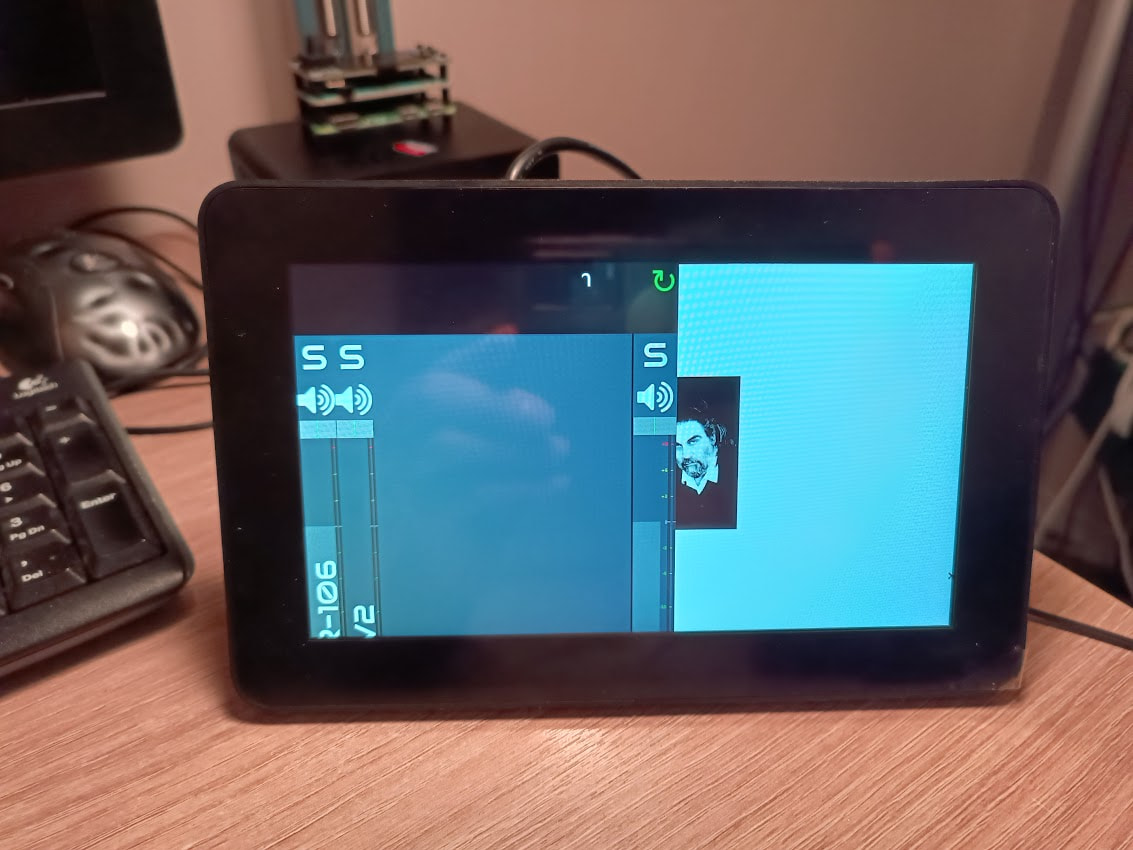
Screen is divided in 2 parts: Left side is the zynthan UI with the lanes, etc. Right side is still the boot image of Mr Vangelis. The touch-controls are no were near aligned either.
So my question is:
is it possible to stretch the zynthian graphical UI to 1280x720?
Hi @ledan - there are a few differences from what I have working, first of all I used port DSI0, which you call DSI-1 in the .conf file, make sure you have real ASCII double quotes in that file, in your post they look like typeset characters and different on open and close, and in display config you have 2 dtoverlay lines and no disable overscan. I don’t understand this stuff very well, here is the thread where I and others worked out the settings:
I tried various tips from your link + some experimenting by myself and now i have ended up in a slightly different place. Its better, but far from perfect.
When i start Vangelis now, i see the terminal boot text scrolling from left to right. Then it enter the UI which is the proper way up and the UI itself stretches across the screen nicely. So far so good
But now the touch-controls are inverted. If i want to press the upper left corner, nothing happens. When i press the lower left corner however, then it acts as i did press the upper left corner. I notice this when trying to select various items as well (its basically doing it bottom-up where my intentions are top-down). I don’t know what setting might sort this out yet
While the console is scrolling horizontally, thats not a big deal imho, but the touch of course is.
Update, stupid of me. I see that i didn’t set the “touch rotation” to inverted which seemed to solve the actual touch issue for me
All i have done now is mostly to make the console scroll naturally at boot-up (+ learn the touch-controls that shows up now and then on the left-hand side of the screen. I don’t seem to be able to “bold press” the top-left corner any longer to reach the main control-ui (admin).
i guess i spoke to soon. i have touch working “sort of” but it all seem misaligned. If i connect a mouse and point/click on the items on the left (buttons), they do what they are supposed to do. But if i try my finger on those same buttons, its all random it seems.
Still not sure how to fix the left->right scrolling console/boot, but that is not a main issue overall (but of course, if anyone has any good ideas, I’m all ears).
how to get the touch buttons visible again in the UI (lost those a few reboots/fiddle-sessions ago)
i have “V5 keypad on left” set and saved, but it still will just display the main-ui.
Another issue i have is that when i ran with the
dtoverlay=vc4-kms-dsi-ili9881-7inch,rotation=90
in config.txt, while it did sort out the console orientation issue, it feels like that setting was some kind of “master” orientation setting as the Zynthian UI started to become weird again (e.g. when i ried to puch some menu on the left-hand side of the screen, the proper one only reacted when i pressed on the right-hand side, etc).
Weird. Combinatory explosion time i guess/trial and error.
Another thing i can’t comprehend is whenever i go to an “info” menu or “help” and i get this black screen with labels only (no values), i can’t press (or “bold press”) the top left corner to back out of it.
Wow. The only thing I can think of to maybe make things settle down is to burn a fresh Oram SD card, update to Oram Staging, then make all the necessary changes to conf file and webconf settings.
I have not seen any case where Touch Navigation was set and the buttons did not appear.
Hi Riban, i followed your advice and put that config in the config-section in the UI instead. Besides that i also have the change (as per above) in /usr/share/X11/xorg.conf.d/90-monitor.conf in effect.
But i started from a clean slate today with Oram (wrote from image again).
Now i have boot text scrolling as it should, the UI is presented nicely and i see the V5 buttons to the left (and controls on the bottom). The only thing now is that the touch is mirrored (to press the “mix level” on the left, i actually have to push towards the right-top corner).
Thx tunagenes, its there alright, and it does change things, but not for the better unfortunately (in my case)
As i understood it, this pi display 2 is defaulted for portrait mode (not landscape) and after having made this 90-degree rotation (in the d-90-monitor-conf) the effect is now as follows:
if i want to press “ctrl preset” or “Zs3 shot”, i have to depress the yellow arrow-up and arrow-down to activate them, which is logical “if” i was running the screen in portrait-mode (which would then be where those buttons would be).
Yeah, it’s the interaction of these ways of changing things that helps make this confusing.
I can’t check on my Z right now, but I thought Touch Rotation would let you flip the Touch somehow either by choosing 180 or Mirror or something like that.
Are you actually using the “second” DSI port? You want to be using DSI0, referred to as DSI-1, the port closest to the ethernet connector. For some reason the second port is not entirely supported, is my somewhat dim memory…
I’m not familiar with the config but remember they’re is a difference between rotate and mirror. And the display and the touch are configured separately.
Now back on Vangelis again and orientation of the ui is correct. I cant enable the ui-touch buttons on Vangelis, but they appear under Oram.
Bold press now works if i depress the top right corner (green heart) and if i in the main menu push a box on the lower right side it activates a box/function on the upper left side.
If i do “invx” or “invy” then touch stops working completely


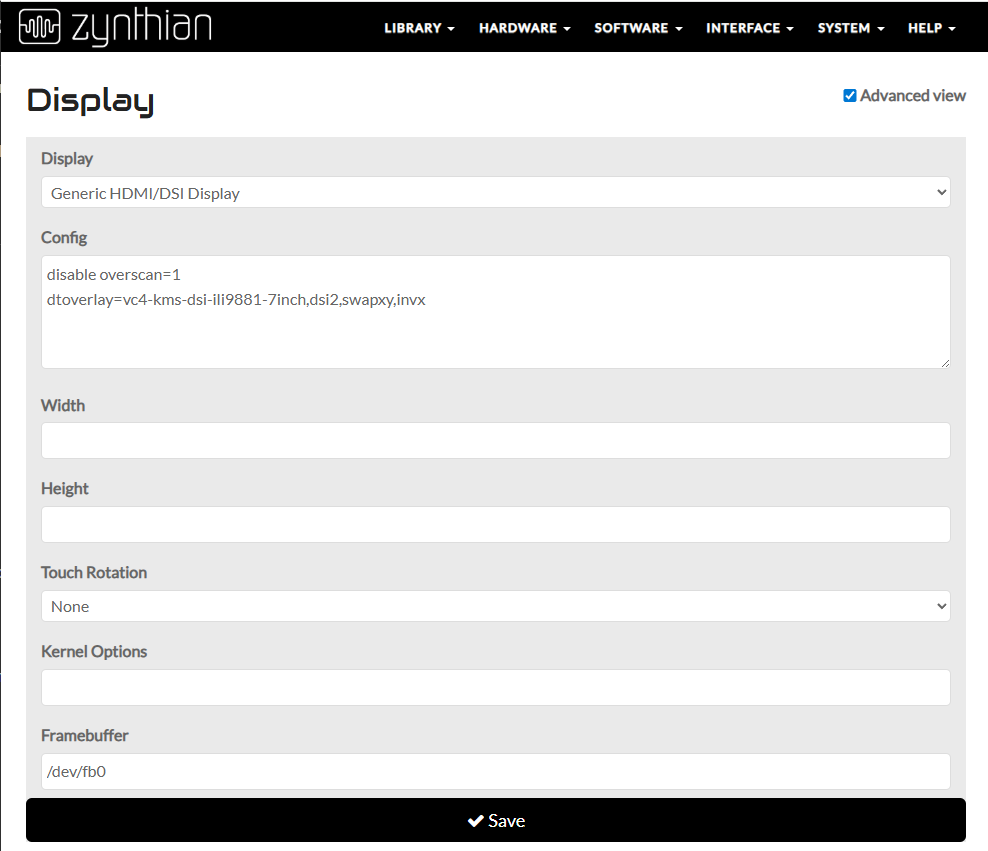
 but i managed to sort out the console boot issue at last (and i have the GUI in the proper orientation and with touch working)