Some versions of some OS don’t support mDNS very well. Find the IP address of your zynthian and try that. The IP address is shown in admin menu network option.
1 Like
On the Zynthian itself, Admin>Network>network Info just says “Link-Local Name => Zynthian.local”. I also couldn’t find IP info via Webconfig, where this is main screen:
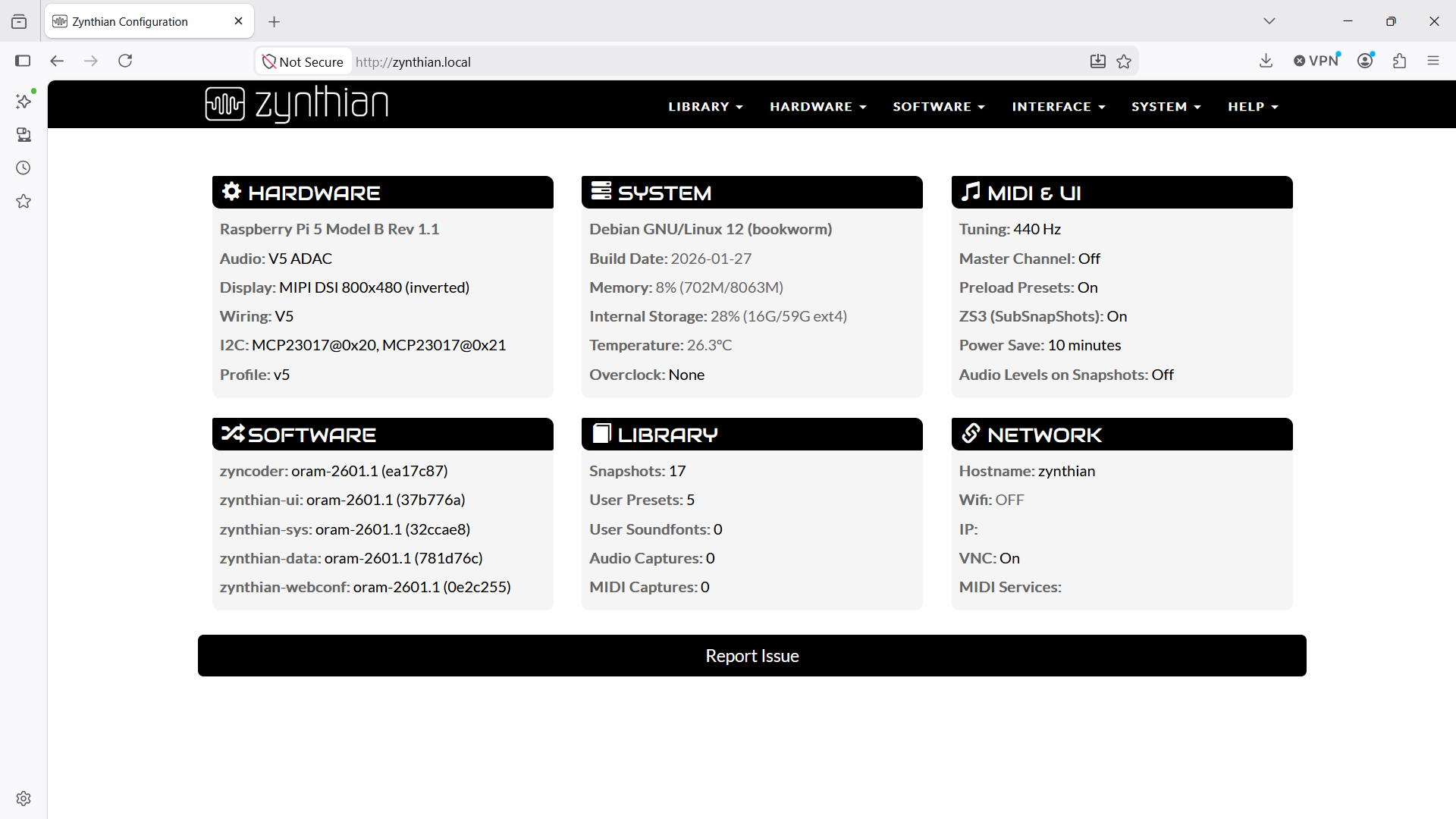
How have you connected your zynthian? Is it connected to a network switch, getting its IP address via DHCP from your router or is it directly connected to you PC with only mDNS direct connection?
Connects directly to laptop usb c socket via standard ethernet cable and usb adapter.
Hi @lopass ,
Your WiFi is OFF.
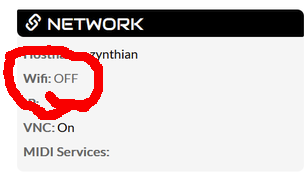
You can try to switch it on with:
nmcli radio wifi on
on the commandline.
Kind regards,
Hans
Hi Hans,
My approach so far has been to connect the Zynthian to laptop by cable and use the laptop wifi for internet connection, bearing in mind this advice:
My impression is that I need the laptop anyway for Pianotec’s GUI if I want to activate manually.
Hi @Iopass!
Probably, by default, the laptop doesn’t route zynthian IP traffic to internet. You should configure the laptop to act as a router (“share internet connection” or something like that).
Normally it’s easier to connect the zynthian directly to your main router, with ethernet cable if possible.
Regards,
The zynthian is not connected to your home / offoce / studio network directly. It is connected to the PC. (What OS is that PC running?) So the PC and the Zynthian can see each other and know how to connect to each other using a device naming system called mDNS. This does not necessarily connect the zynthian to the Internet - that depends on the OS and configuration of the PC. Webconf uses the name of the device that it deduces from the zynthian’s understanding of the world. This may differ from the PC’s understanding of the world. This can result in some elements of connectivity working and others not.
You are accessing webconf with http:\zynthian.local. When you access the INTERFACE->VNC ENGINES it will use the same base url as that use to access webconf, e.g. http:\zynthian.local::6081/vnc.html. This will be opened in a new web browser tab and VNC login should be shown.
1 Like
OS is Win11. http:\zynthian.local:6081/vnc.html always waited a few seconds and gave up. Thought I might try the kit v5 setting in webconfig in case something needed customising to my kit. Just saved and pressed reboot…now it doesn’t boot. Guess I’ll reburn the sd. Tomorrow : )
Not booting or not starting? Did you try webconf to return to the previous setting?
Webconfig lost connection (though it was always doing that after a couple of minutes anyway.) No sign of activity since it shut down to reboot, despite turning off and on a few times, after waiting a few minutes or longer each time. My last reburn went smoothly enough. Maybe this time it will go smooth enough to make the vnc issue disappear. Fingers crossed anyway.
Ok, reburn worked and I think I’ve figured out most of the rest too. VNC is working via wifi on Zynthian and webconfig reported back from the Pianoteq site that I have to select an instrument pack before activating. Thanks for all the pointers.
1 Like