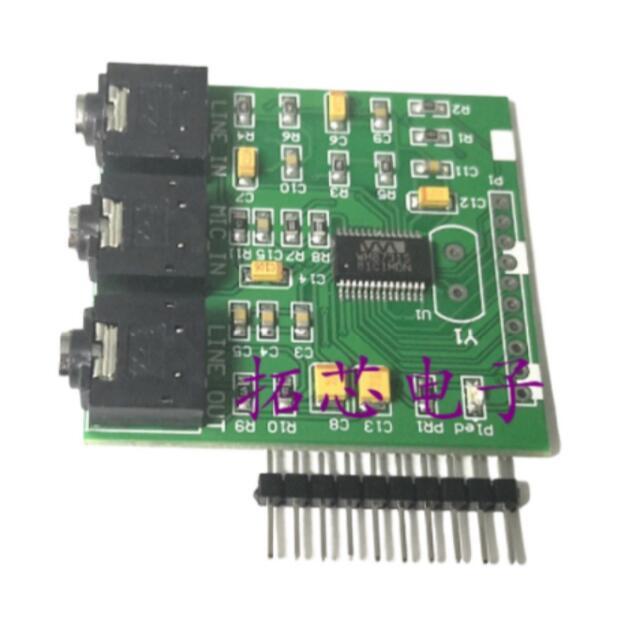
HELLO @techouselgs - I can’t tell if your question was for @le51 specifically and the simple Zynthian board and maybe you need more info on:
above or just a general fb_ili9488 framebuffer driver question. If intended generally, we’d still need some detail on what problem you are experiencing, here’s a general guide to “How to use fb_ili9488 on a Raspberry Pi running Zynthian” from Gemini. Also there is no need or benefit to using all caps - it comes across as SHOUTING to me.
How to use fb_ili9488 on a Raspberry Pi running Zynthian
While a standard Zynthian build prioritizes officially supported displays for stability, it is possible to use an fb_ili9488 display by manually configuring the system files. The process involves modifying the Raspberry Pi’s display configuration and the Zynthian service files to direct the graphical output to the correct framebuffer device.
Step 1: Connect your hardware
-
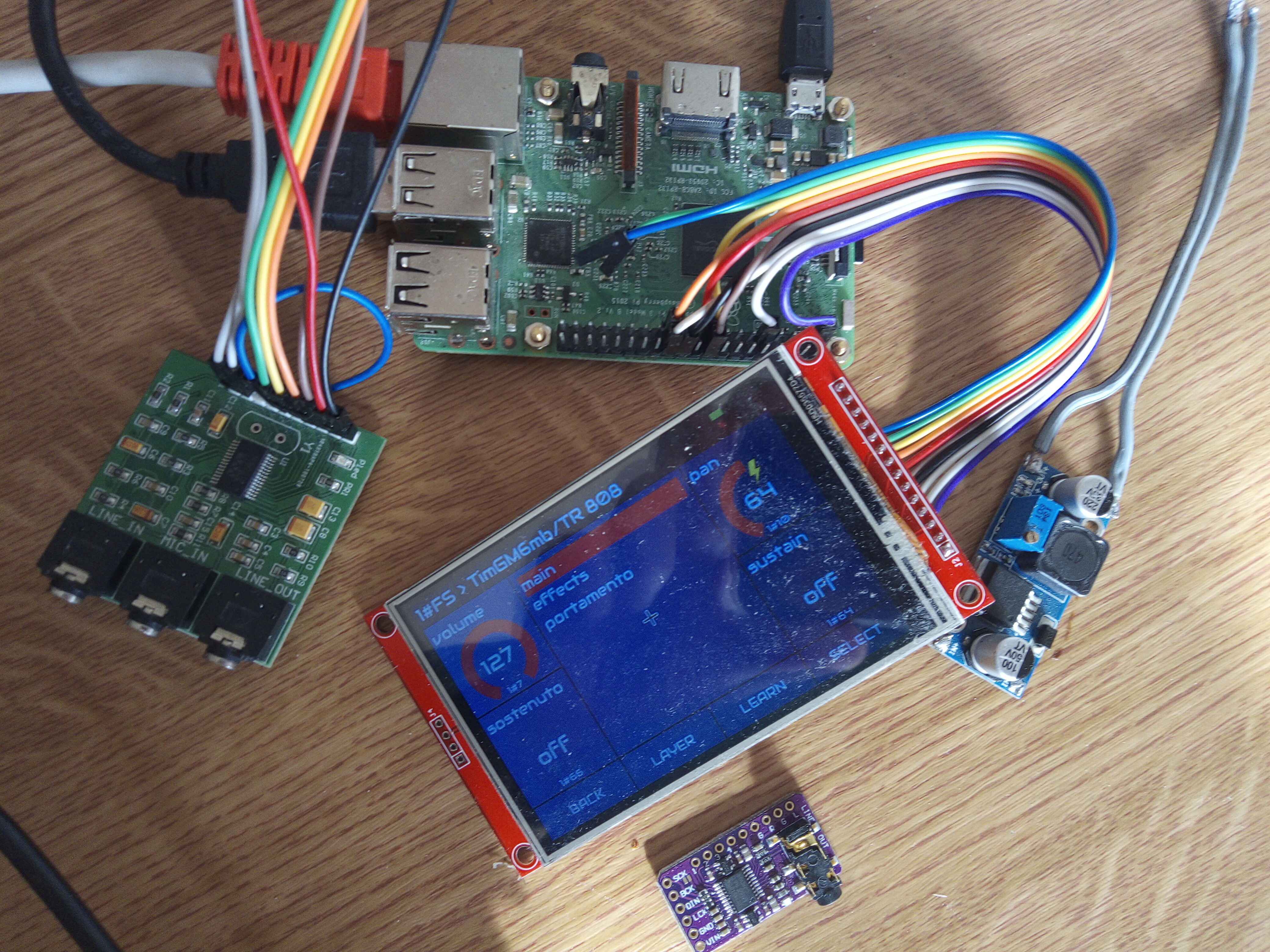
Connect the ili9488 SPI display to your Raspberry Pi’s GPIO pins. The specific pinout will depend on your screen model, so consult its documentation.
-
The ili9488’s MISO pin does not always go tristate, so do not connect it if you have other SPI devices on the same bus.
-
For the initial setup, connect your Raspberry Pi to a standard HDMI monitor and a USB keyboard so you can access the command line.
Step 2: Install and configure the fbtft drivers
The fbtft framework is often used for ili9488 displays, although it’s deprecated in recent Raspberry Pi OS versions.
-
Enable SPI using sudo raspi-config.
-
Edit sudo nano /etc/modules-load.d/fbtft.conf and add the following modules: spi-bcm2835, flexfb, and fbtft_device.
-
Configure fbtft options by creating sudo nano /etc/modprobe.d/fbtft.conf. The options, including flexfb and fbtft_device parameters like width, height, bus width, and initialization sequence (init), will depend on your specific display model. You may need to consult your screen’s original driver scripts for the correct init sequence.
Step 3: Redirect the framebuffer
To use the ili9488 as the primary display, redirect the output from /dev/fb0 to /dev/fb1.
-
Edit cmdline.txt (located at /boot/firmware/cmdline.txt or /boot/cmdline.txt) and add fbcon=map:10 fbcon=font:VGA8x8 before rootwait.
-
Create /usr/share/X11/xorg.conf.d/99-fbdev.conf and add a “Device” section with the Driver “fbdev” and Option “fbdev” “/dev/fb1”.
-
Modify Zynthian service files (/etc/systemd/system/zynthian.service, /zynthian/zynthian-sys/sbin/splash-screen.sh, and /zynthian/zynthian-ui/zynthian.sh) to change references from /dev/fb0 to /dev/fb1.
Step 4: Configure the display in Zynthian
-
Access the Zynthian WebConf at http://zynthian.local.
-
Under Hardware > Kit, set the Kit option to Custom.
-
In Hardware > Display, select Generic HDMI Display to indicate a custom setup.
-
For touchscreen calibration, stop the Zynthian service (sudo systemctl stop zynthian), install xinput-calibrator, run the calibrator, add the values to /etc/X11/xorg.conf.d/99calibration.conf, and restart the Zynthian service (sudo systemctl start zynthian).
Additional considerations
-
Be mindful of driver compatibility, as Zynthian uses a specific Raspberry Pi OS version, and older fbtft configurations might not work.
-
A framebuffer copy (fbcp) is a possible but more complex workaround for display issues.
-
The Zynthian Discourse forums are a valuable resource for custom hardware support.
could you explain more about A framebuffer copy (fbcp) is a possible but more complex workaround for display issues.
A framebuffer copy (FBCP) is a technique that clones the content of one framebuffer, typically the primary display, to a second display’s framebuffer. It is considered a complex workaround because it is not a native or optimized solution but rather a manual process for forcing output to a display that lacks direct hardware support.
How FBCP works
A framebuffer is a region of RAM that holds the pixel data for the image displayed on a screen. A typical system uses a single framebuffer for its main display (e.g., HDMI). FBCP works by performing the following actions:
-
A program (often fbcp or a variant like fbcp-ili9341 for Raspberry Pi) is run continuously in the background.
-
It takes a snapshot of the primary display’s framebuffer, for example, /dev/fb0.
-
It then copies that pixel data to the framebuffer of the secondary display, such as /dev/fb1.
-
This process is repeated very quickly to give the appearance of a live video feed on the second screen.
For low-speed connections like SPI (Serial Peripheral Interface), optimized FBCP implementations improve performance by only copying the pixels that have changed since the last frame, rather than the entire screen.
Why FBCP is a complex workaround
FBCP is used when the secondary display—often a low-resolution display connected via a slow, serial interface like SPI—cannot be natively driven by the graphics processing unit (GPU). The complexity arises from several factors:
-
Performance overhead: The continuous process of reading, copying, and writing an entire screen’s worth of pixel data is processor-intensive. This can put a significant load on the CPU, potentially impacting the performance of other running applications.
-
Potential for bugs: If a program changes the parameters of the primary framebuffer while FBCP is running, it can cause the FBCP process to “choke,” resulting in a frozen display.
-
Resolution and scaling issues: The secondary display’s resolution is often different from the primary display’s. FBCP may need to scale the image, which can result in black borders or uneven, blurry scaling.
-
Software and driver dependencies: FBCP often relies on older or legacy display software stacks. For example, some Raspberry Pi versions with newer operating systems have deprecated the legacy drivers that FBCP uses, making it no longer a viable option on those systems.
-
Synchronization challenges: As a manual copy process, FBCP can struggle to keep up with high-motion content, leading to a lower effective refresh rate on the secondary display and potential screen tearing.
When FBCP is used
Despite its complexity, FBCP can solve specific problems, particularly with small, inexpensive displays on embedded devices like the Raspberry Pi:
-
Adding a small secondary screen: For a Raspberry Pi or similar device, FBCP can be used to drive a low-resolution SPI display that is too small to be a primary monitor, such as for a console or control panel.
-
Using incompatible display types: It allows a device to output to a display that lacks a native driver, effectively duplicating the output from a compatible display type (like HDMI).