Working configuration for Raspberry Pi Touch Display 2

Hi,

does anyone have a working Zynthian configuration for the Raspberry Pi Touch Display 2?

Display details:

  • Raspberry Pi Touch Display 2

  • 7-inch

  • Resolution: 720 × 1280

  • Connected via the official Raspberry Pi display connector (DSI-2)

I would like to use it with Zynthian, but I am not sure what the correct display/touch configuration should be.

If anyone has this display working, could you please share your configuration, especially:

  • display settings

  • touch calibration/settings

  • rotation/orientation settings

  • any required changes in config.txt or Zynthian web configuration

My setup:

  • Raspberry Pi: Raspberry Pi 5 / 8GB RAM

  • Zynthian version/image: 2026-01-27-zynthianos-oram-2601-stable.img

  • Audio HAT: HiFiBerry DAC+ ADC Pro

Thanks for any working example or confirmed setup.

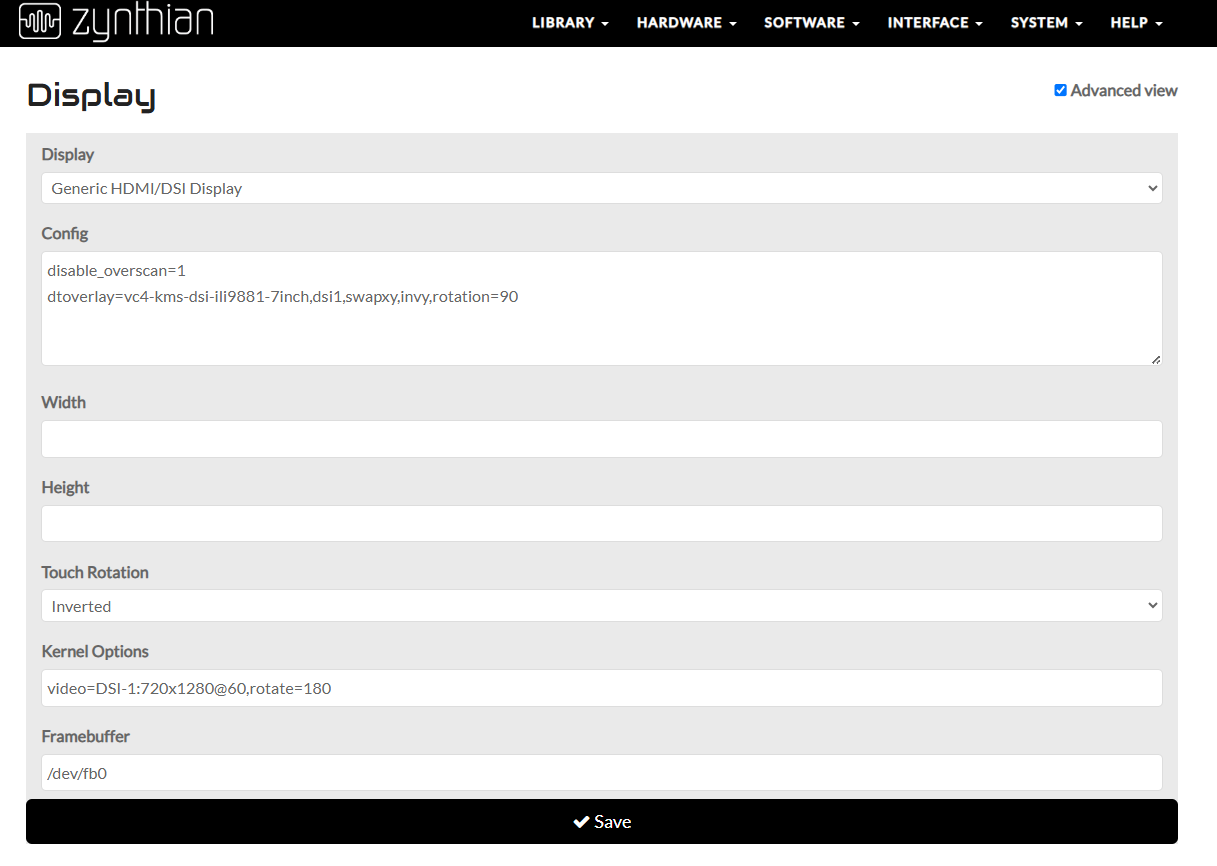
These were the only setting I had to do:

No touch calibration

Cheers, Kees

Thank you. I’ll try that. Have you tried the landscape layout as well?

this is landscape..?

4 Likes

Hi @useraida - I have a different working config, I’m not saying mine is better than the one from @Keeze101 , just different. This is starting with a clean Oram Staging.

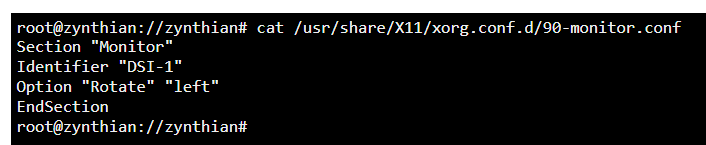
This is the contents of my /usr/share/X11/xorg.conf.d/90-monitor.conf. Note that I had some trouble with the double quotes, make sure they are ‘plain’ double quotes not fancy typeset open and close double quotes:

Section “Monitor”
Identifier “DSI-1”
Option “Rotate” “right”
EndSection

These two lines go in Display Config in webconf:

disable overscan=1
dtoverlay=vc4-kms-dsi-ili9881-7inch,dsi1,swapxy,invx

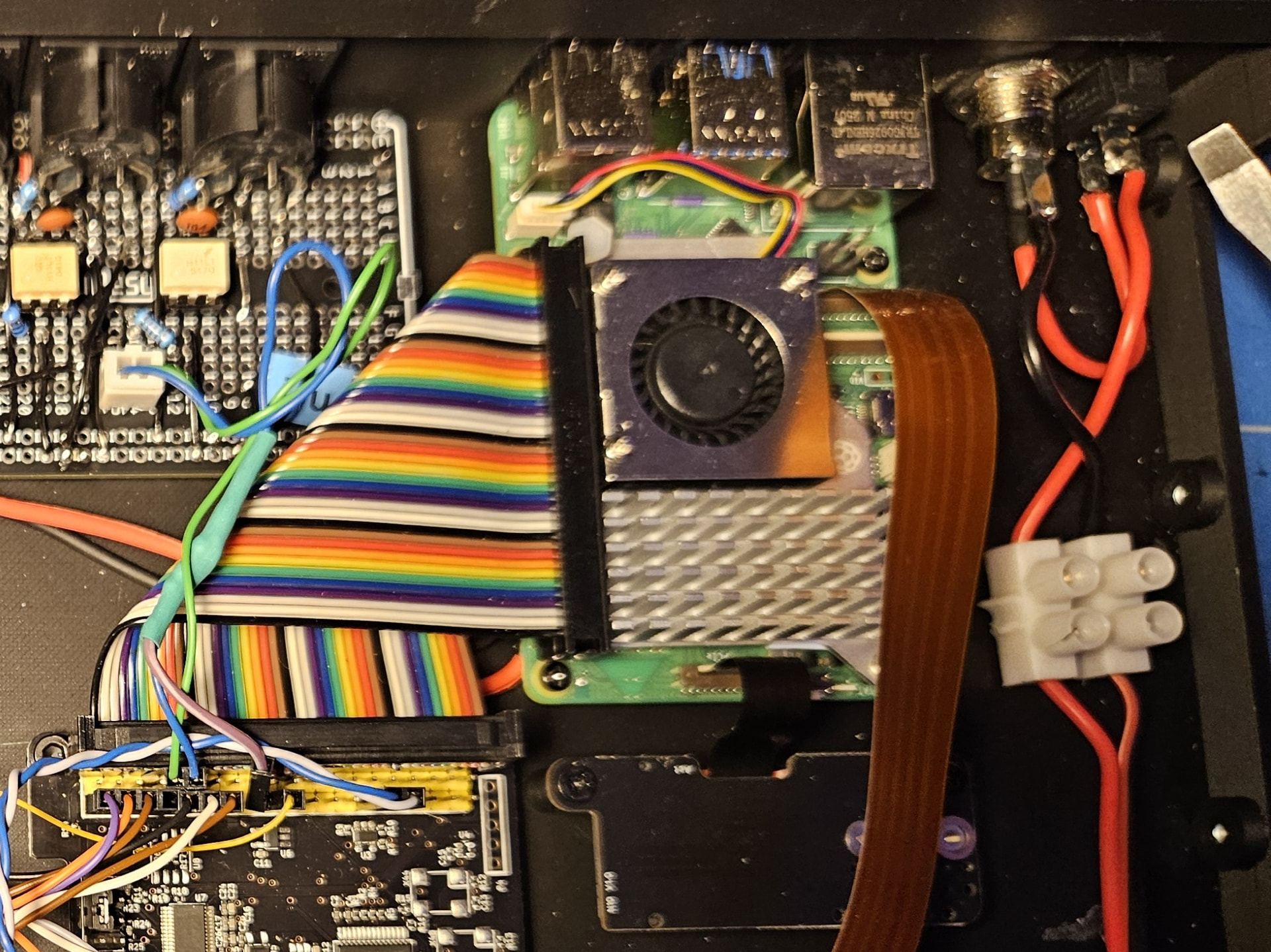
This is with the Touch Display 2 plugged into the DSI0 connector, the one closer to the Ethernet port. The “dsi1” in the dtoverlay statement is really confusing, it means dsi0! I think you’d use “dsi2’“ for the dsi1 port, but I have not tried it, and there may be problems with it, I’ve read about in the forum somewhere, for Zynthian.

I’m using a USB audio interface, and onscreen touch buttons.

May the Force be with you.

2 Likes

Hmm, checked my conf:

So usefull addition!

As @tunagenes stated, cable inserted in port nearest to LAN-port

1 Like

That’s a really fine case!

So much so it’s time to do this

So I tried your settings and screen rotation didn’t work using parameters but only after creating the file /usr/share/X11/xorg.conf.d/90-monitor.conf
No matter how I changed the configuration from the posts to those values, the touch layer showed problems (it was inverted).
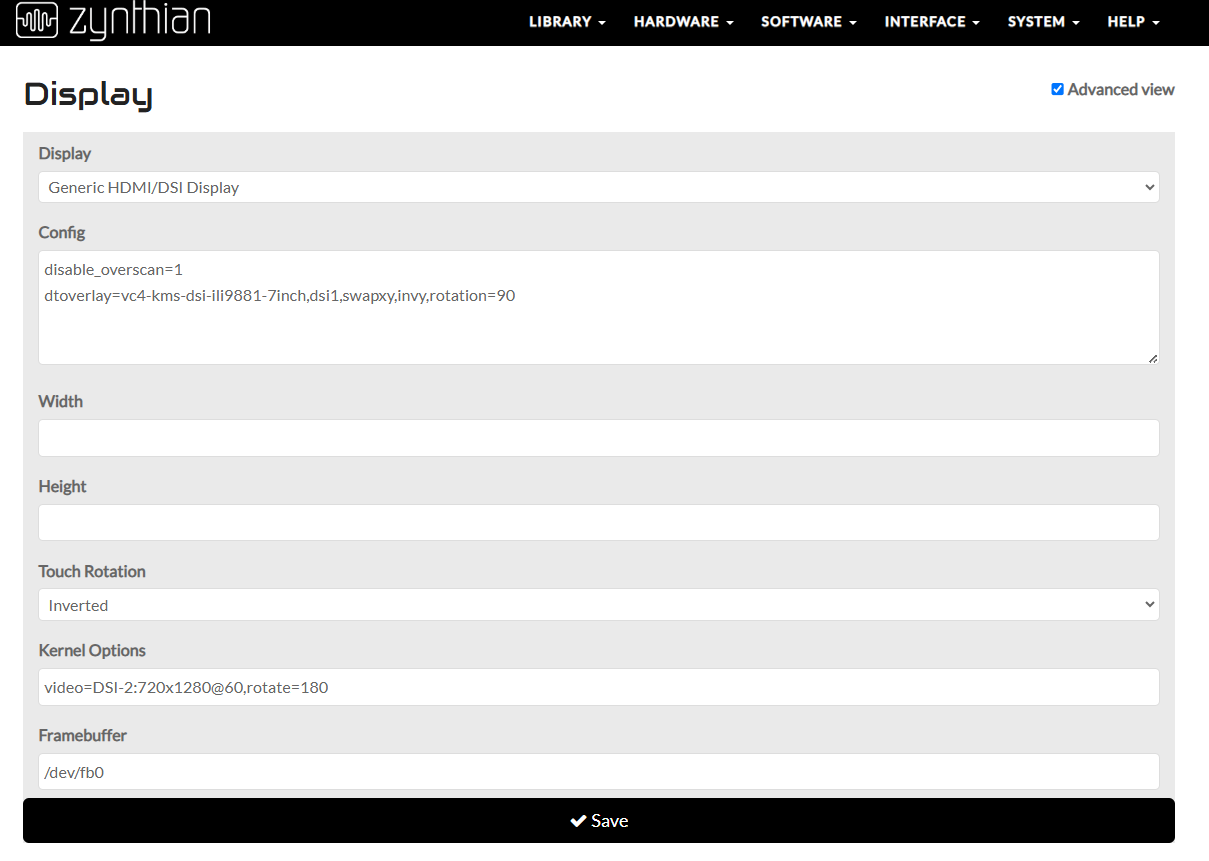
Finally, this setting works for me.
Thank you all for your contributions.
Otherwise, another small question… is it possible to somehow turn off the mouse cursor display?
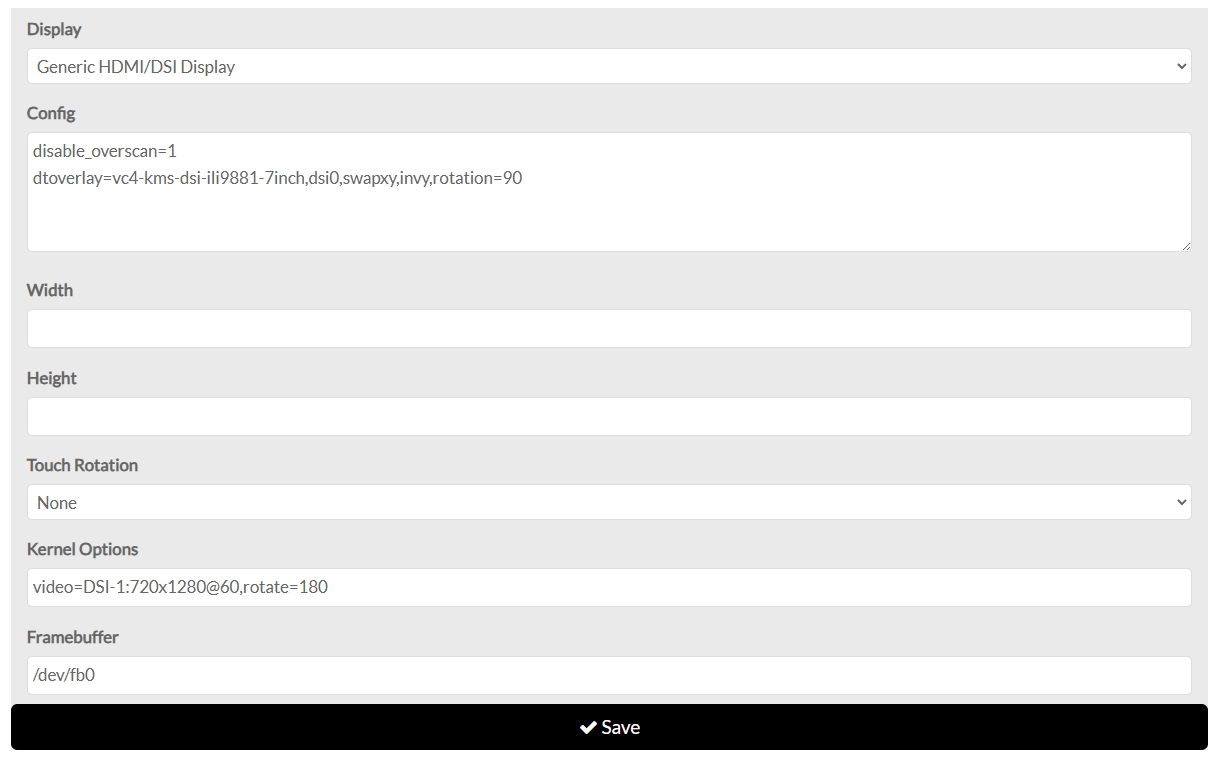
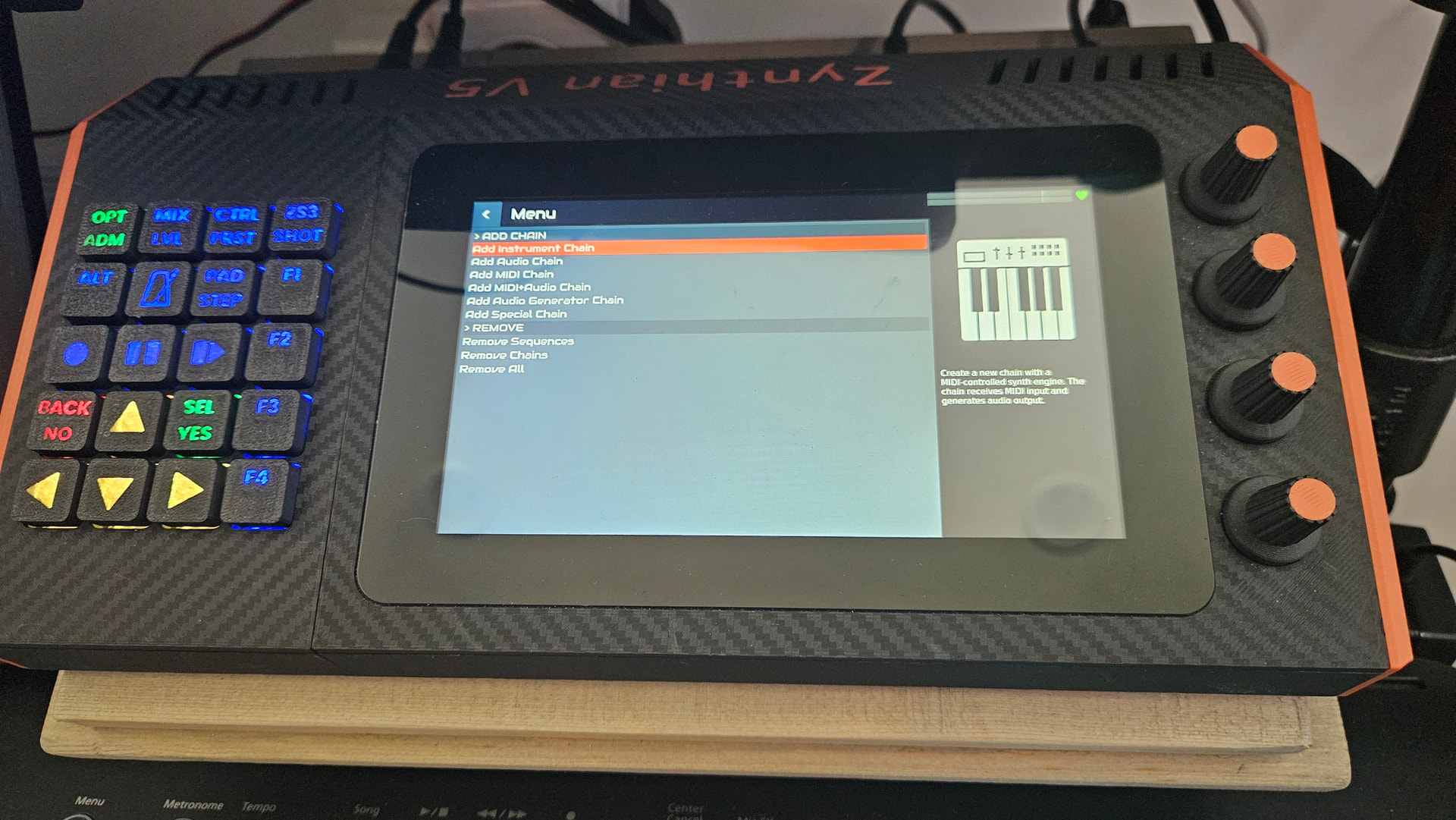
and it works too:

Hi. This is possible and straightforward: just uncheck the related box in webconf > UI Options (Advanced).

I found that the “kernel options” item can be left blank. It has no effect on the orientation and functionality of the display/touch layer.

@Aethermind thank you for solution by mouse pointer

2 Likes