A brief user guide.
- In mixer view, OPT button or bold SELECT or click topbar will show the chain manager.
- Mixbus (effects returns) have blue (bottom) legend strip. Main mixbus has dark red.
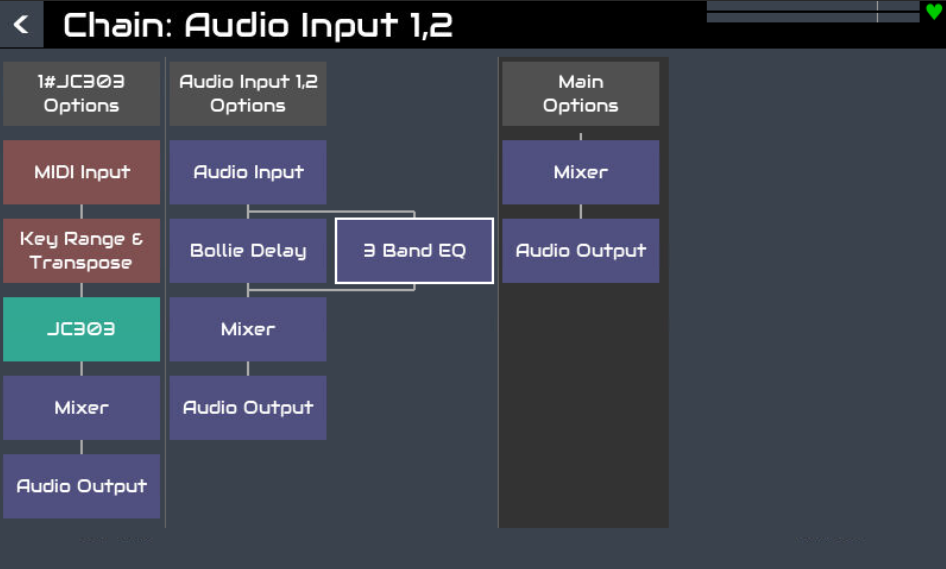
- Cursor buttons and encoders 3 & 4 navigate the selection cursor.
- Select or click a box to show its menu / function.
- Bold select or bold click a processor to move it. (Also an option in its context menu.)
- Processors can be moved up/down the chain to be in series or parallel and pre/post fader. They may be dragged with a mouse (when in move mode).
- Bold select the top (chain) option box (grey) to move the chain.
- Chains can be moved left/right to reorder their position. Dragging to the far right will pin the chain to the right of the mixer. (It shows in the grey background in chain manager view when pinned.)
- Chain options (top grey box) gives operations on the whole chain.
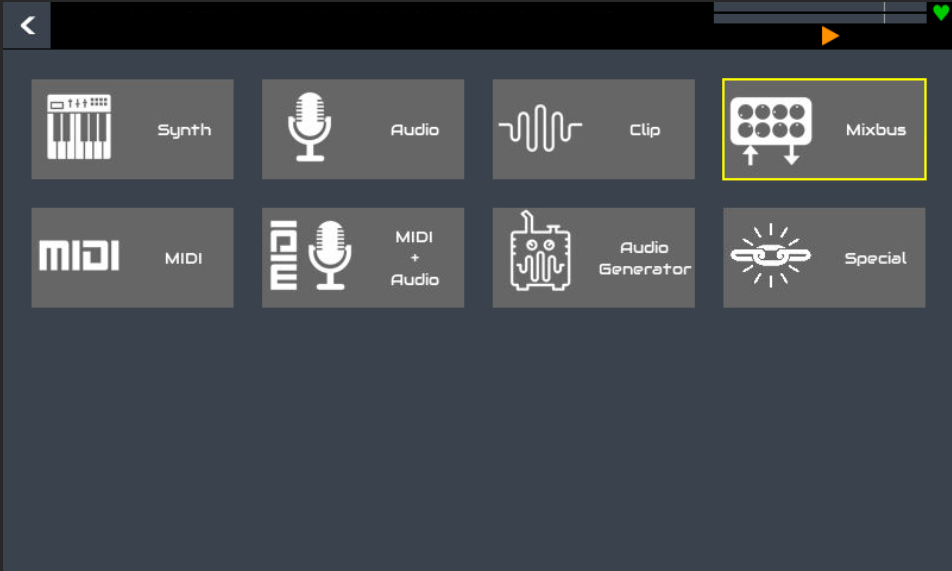
- Adding a processor will insert it immediately before/after the synth if selected from the synth processor menu or in parallel with the processor who’s menu is used to select insert processor.
- A new chain is inserted to the left of the selected chain by using its option menu.
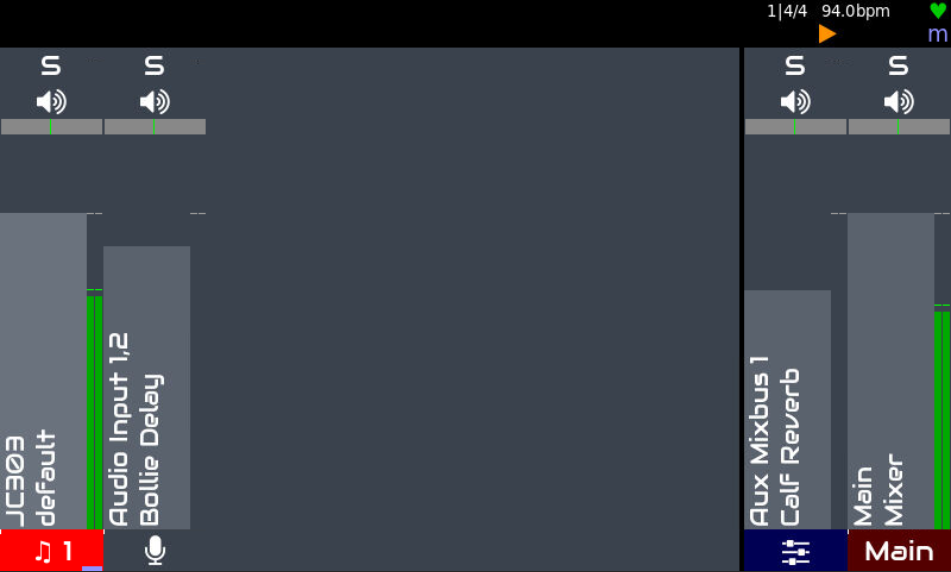
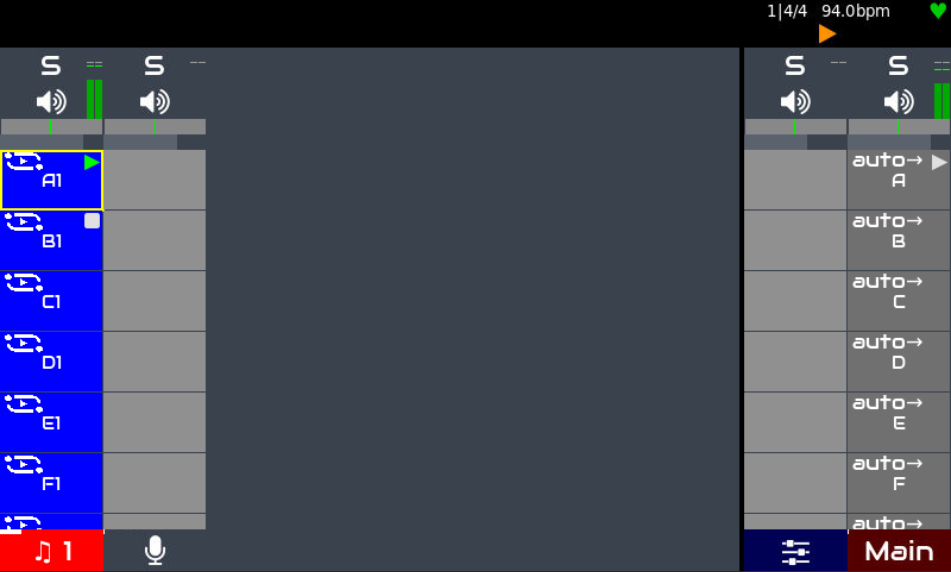
- In mixer view, PAD button or bold SELECT or bold click top bar toggles faders / launchers.
- The meters shrink and move to the top. The fader shrinks, rotates to be horizontal and moves to the top.
- Audio only chains are still shown, with blank launcher buttons which do nothing.
- Launchers on the far right are “phrase launchers” that will start or stop all the sequences in that row.
- SELECT or click a launcher to toggle its play state.
- Bold SELECT or bold click a launcher to edit the pattern or show the phrase launcher menu.
- The pattern editor menu has some sequence options including naming (what appears on the launcher button), play mode (loop, play x times), etc.
- The phrase options menu allows configuration of the phrase launcher including:
- Duration of the phrase (how long before it performs its follow action). By default this is calculated from the longest sequence in the phrase.
- Follow action defines what happens at the end of the phrase, e.g. trigger next phrase.
- Tempo overrides the current tempo when the phrase starts, including if it is triggered by a follow action.
- Beats per bar overrides the time signature when the phrase starts.
- Phrase can be added, removed and moved.
- The mixer processor controls appear in the control view. These include: level, balance, mute, solo, mono, phase, M+S and multitrack record arm.
- There will also be a send page per mixbus (excluding main mixbus) with send level and pre/post fader switch.
- Each audio processor has an additional “bypass” control that will bypass the effect when asserted.
- All control parameters may be bound to MIDI CC using the standard MIDI learn procedure.
- Horizontal scrolling can be done with touch by dragging the bottom legend strips. Vertical scrolling of launchers can be done with touch by dragging the phrase launchers on right hand side. This is to reduce the risk of accidental dragging on the main launchers.
Hopefully this is enough to get you going.
Something I forgot to mention is that the mixer is now split in two, with one part handling input chains and the other handling mixbuses. This allows pre and post fader effects and send / returns to be handled without the additional latency of Oram’s post-fader implementation.