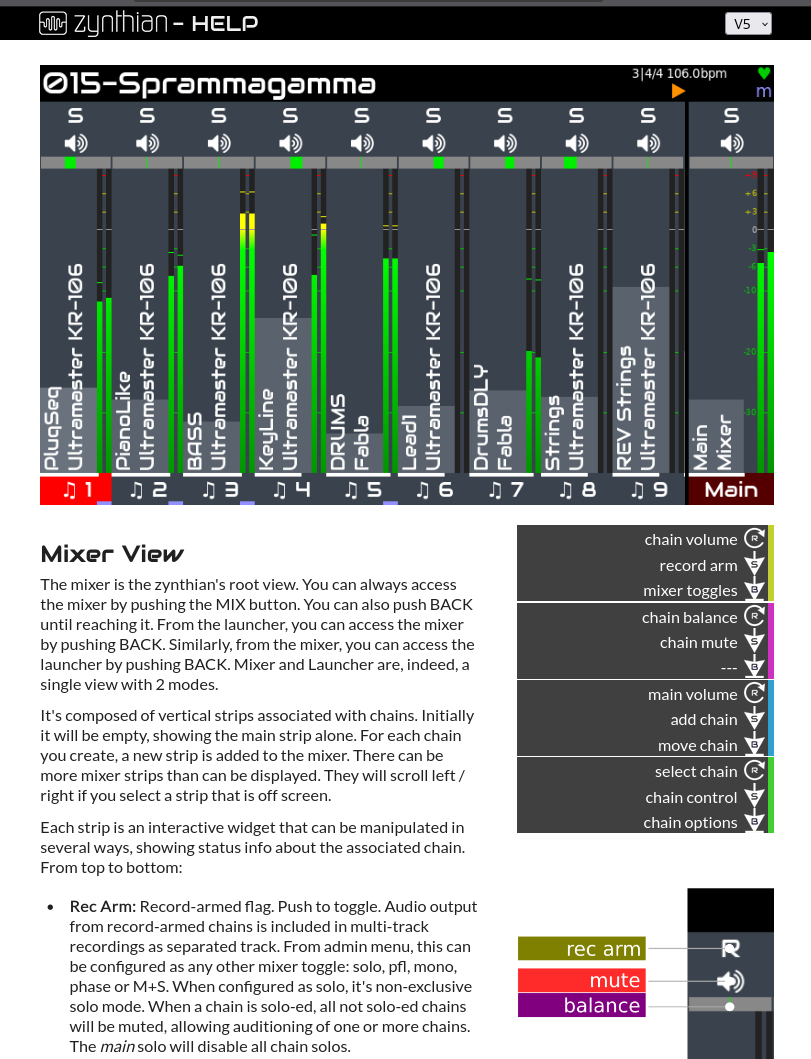
All the 3 show the same contents from the repository zynthian-help. The zynthian-help repository now includes a little server based in python’s tornado that allows to serve the help pages locally. Very useful for editing and testing the changes.
The web-browser versions (webconf & online) include extra screenshots and videos. I’m thinking of integrating the “zynthian mockup” to allow playing complete workflow captures with all the LEDs, button and knob details.
Yes. It would be nice to have an index panel at left
Although there is still a long way to complete all the “holes”, the pieces start to get aligned now.
Documenting zynthian is a huge task, and a difficult one, so … if some of you is interested in helping with this, please, contact me!!
Another update on the new user’s guide for vangelis:
Completed and improved Basic Concepts section
Added new User Interface section
Added new Preset View section
Lots of fixes and adjustments
The remaining more important holes are:
Complete “Pattern Note Editor” section
Write “Pattern CC Editor” section
Write “Clippy” section
Complete “SooperLooper” section
It would be nice to write sections for all the other screens, like:
Admin
Engines
ZS3s
Snapshots
Chain Options
Processor Options
MIDI Input
MIDI Output
Audio Output
Audio Input
etc.
This is not so important because all these screens have quite decent “tips” in the right side panel.
Perhaps it’s enough to explain the user that they should read the tips carefully
Anyway, please, test and review the help. You can do it on-line:
or updating your zynthian and accessing the on-screen help. The contents are exactly the same, except for the screenshots that are omitted in the on-screen help.
You can report errors, pitfalls, typos, etc. here, on this thread, or better, send the fixes via PR to the zynthian-help repository:
This is exactly the approach I have been talking for lists with info panel. The help for these views describes how to use the list and contextual help is provided by the info pane. I don’t see benefit in repeating the displayed info text in a help file. The info panel is available to zynvoice also.
How? When entering an option only the option is read out. Or did something change there since last week when I tried this?
I find the text in the info panel to be too tiny for an zynthian 4 with a 3.5" screen. Is it possible to make this text somewhat larger? (yes, I am getting that age…).
Increasing the font size is not the problem. The problem is the limited space in the 3.5 inch display. I stopped using 3.5 inch displays because i’m also “getting that age”. 3,5 inch is for the young
The ZynVoice button may be used to stop the current announcements. If ZynVoice is silent, the ZynVoice button will trigger a context announcement. By default this is the name of the current view but may also include some context for that view, for example: it may tell you the highlighted entry in a list.
sets the font size to 7, because the side_width calculated value will always be smaller than 0.8 of the font size. A font size of 7 is really inaccessible.
Clamps the font-size to 0.7*config size < relative to available width < config size.
Reduces the size of the image (half the height and width), that is taking up a lot of space, but only when the font-size would otherwise have to shrink to be less than 0.7 times the user font size.
Adds left-right arrow key for touch-only devices that may not have a way to rotate knob 3.
Note in the engine selector view, you can press knob 3 to open this text in the Help View. This is great, but alas we cannot easily do this in all places.
The ZynVoice button (S4 or F4) is not configured to do this in the default wiring profiles. Only its long press is configured to do TTS_TOGGLE_ENABLE. Its short action is set to e.g. PG4, screen_zs3, arrow down, depending on the wiring profile.
Setting the short press to TTS_TOGGLE_PLAYBACK enables the behavior as described in the Help (which is great by the way).
Can anybody quickly help: I found the help pages, but I don’t know how to leave them again. Custom build with onscreen buttons, but the help page expands to full screen and none of the encoders are helpful.